
Real-time file sharing has revolutionized how we work from the paper-routed on office desks, then to diskettes, CDs, and thumb drives, and now, cloud collaboration across continents. Thanks to tools like Google Workspace, teamwork has never been more accessible or connected.
Yet this advancement still comes with risks. Take Sally and Ted from Keto Kitchen: they discovered the hard way that mistakes, such as sharing files with the wrong people in Google Drive, can lead to serious problems like exposing sensitive business data or losing control over important documents.
In this article, we’ll walk you through the file-sharing mistakes that nearly compromised Keto Kitchen’s data security and reveal the smart ways they revamped their Google Drive sharing practices. You’ll learn practical strategies to secure your own Google Drive and avoid similar pitfalls.
File Sharing Mistakes to Avoid
When friends started asking Sally and Ted how they suddenly looked and felt healthier, the couple turned their keto lifestyle into a thriving business called “Keto Kitchen”. But as demand grew, they discovered that running a business brought challenges far beyond cooking. One of the biggest? Managing files and data in Google Drive, where a few small mistakes created surprisingly big problems.
-
Losing Track of File Access
At Keto Kitchen, Sally and Ted shared dozens of documents daily, from inventory and supplier lists to marketing materials. Over time, they couldn’t remember who could see what. Some files remained open to former employees and contractors, leaving confidential business data exposed.
-
Sharing Data with External or Personal Accounts
Sally outsourced marketing materials to a former colleague and shared the assets via personal Gmail. After the colleague sent them back, Sally’s account was hacked, leaving her unable to access the files. As a result, Keto Kitchen’s content posting schedule was delayed.
-
Allowing Unauthorized Sharing
An employee shared a Drive link in the team’s WhatsApp group to get feedback on the upcoming menu. Excited about the new dishes, another staff member forwarded the link to friends outside the company, not realizing it was still confidential. Soon, customers were asking about a menu that wasn’t even finalized showing how quickly internal materials can spread without proper sharing controls.
-
Controlling Content Usage
Recipes are critical documents that should only be edited by Sally or Ted. While they share the recipes with the kitchen staff, both are concerned about the potential for unauthorized downloads or edits. Data leaks and loss of version control could lead to significant issues for Keto Kitchen, compromising the integrity of their operations and recipe consistency.
-
Not Setting an End Date for File Access
Reseller agreements at Keto Kitchen were left accessible long after contracts had ended. Former resellers could still open confidential files, giving them visibility into pricing, terms, and internal documents they should no longer see. Without automatic expiration, sensitive information remained exposed, creating a significant risk of misuse and competitive disadvantage.

Now that we’ve reviewed the common mistakes to avoid, let’s dive into the best practices for securing your Google Drive and improving team collaboration.
Smart sharing strategies for a safer, more organized workspace
After repeatedly experiencing file management issues, Keto Kitchen decided to completely revamp its digital setup and migrate from personal Gmail accounts to Google Workspace. The switch proved worth the investment, bringing structure to their back office, improving collaboration, and keeping their growing team aligned. With a central, professional workspace in place, they could finally enjoy the benefits of secure, well-organized sharing
1. Use Google Groups to control everyone’s access
Keto Kitchen created Google Groups such as resellers@ketokitchen.com and suppliers@ketokitchen.com to ensure everyone had the right access to the right files. Sharing with Google Groups instead of individual users:
- Saves you the hassle of individual sharing: When you have something (folder, file, site, new contact list) to share with the whole marketing department, you will just need to share it with the marketing group.
- Facilitates onboarding: When a user needs to access some resources, just add it to the relevant group, and they will have instant access to these documents.
- Makes permissions update a bliss: If you need to update (e.g., “read only”, “can read”) or revoke the access permissions of a whole team, just do it at the group level once.
- Secures access: When a departing freelancer or ex-employee no longer needs to access your data, just remove it from the group once, and they will lose access to their group’s files, contacts, and other shared files.
Steps to Create a Google Group:
- Go to https://groups.google.com/
- Click Create Group.
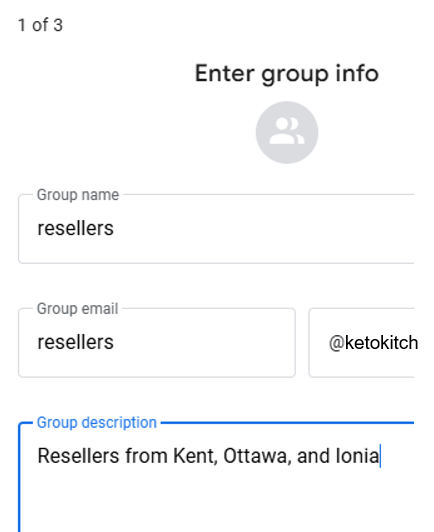
- Enter the group info, including the group name, which can be the email address of the group.
- Choose the privacy settings, like who can see or join the group.
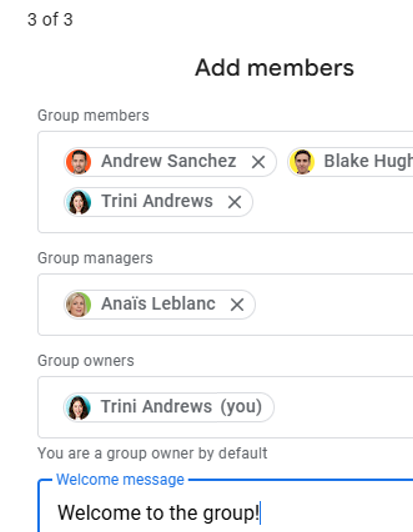
- Add the members.
- Click ‘Create’.
 |
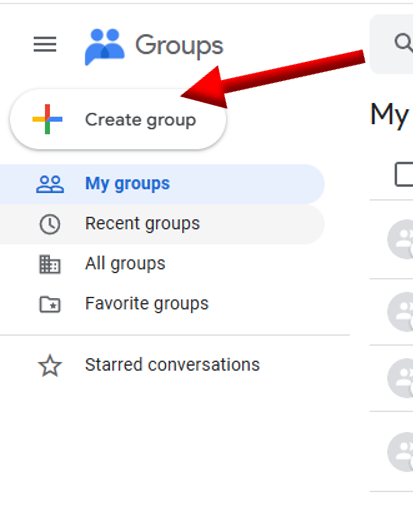 |
| 1. Go to Google Groups. | 2. Click Create group. |
 |
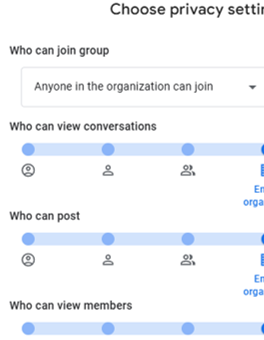 |
| 3. Name the group. | 4. Set privacy options. |
 |
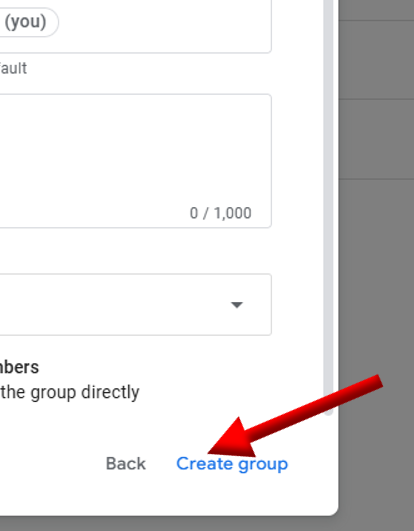 |
| 5. Add members. | 6. Click Create group. |
2. Collaborate on Shared Drives
For Keto Kitchen, adopting Shared Drives was a game-changer. Before switching to Google Workspace, the team stored recipes, marketing files, and supplier documents in personal Google Drives. When someone left the team or cleaned up their personal storage, critical files sometimes disappeared causing unnecessary chaos and lost work.
With Shared Drives, ownership now belongs to the organization, not individuals. Even if a team member leaves, all recipes, design assets, and operational documents remain accessible to everyone who needs them. It keeps collaboration smooth and ensures that Keto Kitchen’s growing collection of files stays safe under one organizational account.
If you’re still using personal Gmail accounts, remember: you can’t create true Shared Drives. The best option is to sign up for a Google Workspace account and create a shared drive, or request someone who has a Workspace account to create the Drive and grant you manager access.
Steps to Start Collaborating on a Shared Drive:
- Open Google Drive.
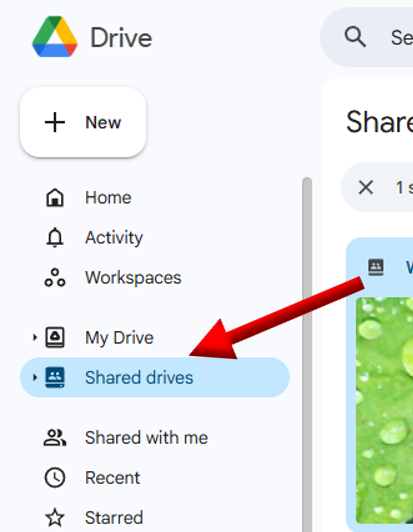
- Click Shared Drives.
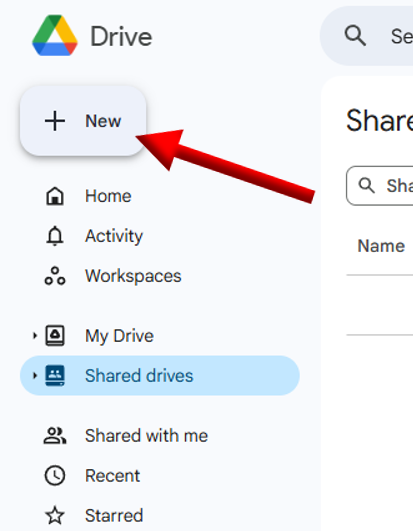
- Select New.
- Type a name for your Shared Drive and click Create.
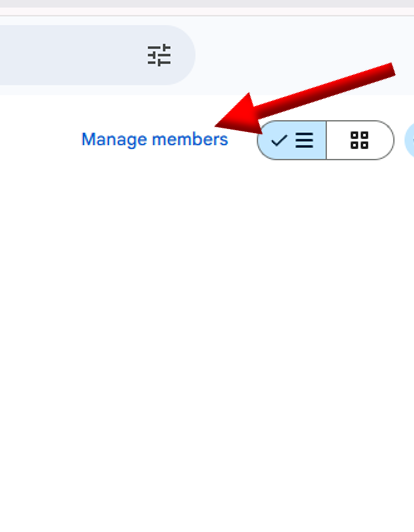
- Click Manage Members.
- Add the people or groups you want to share with, and set their permission level.
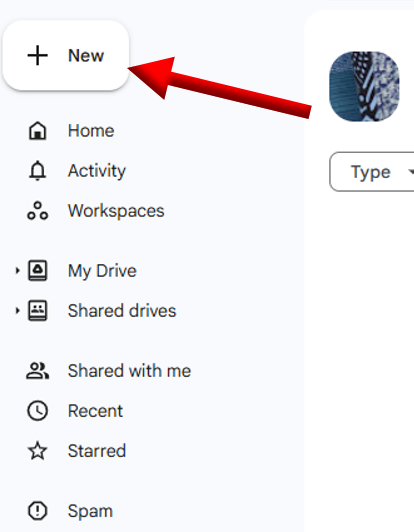
- Click New to upload or create files in the Shared Drive.
- (Optional) Change the view by clicking List Layout or Grid Layout.
 |
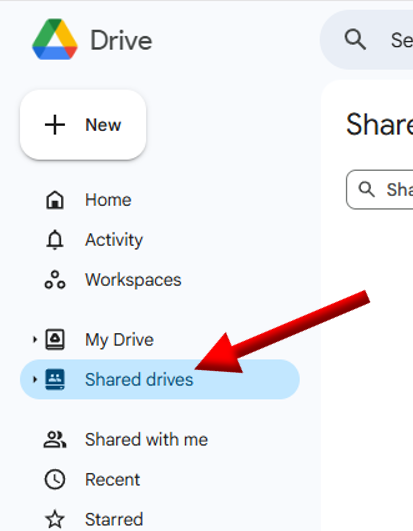 |
| 1. Open Google Drive. | 2. Click Shared Drives. |
 |
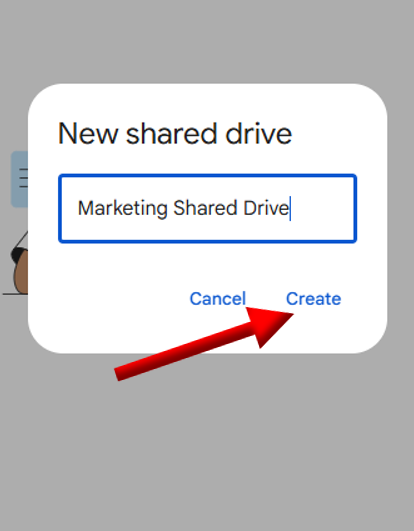 |
| 3. Select New. | 4. Name the Shared Drive. |
 |
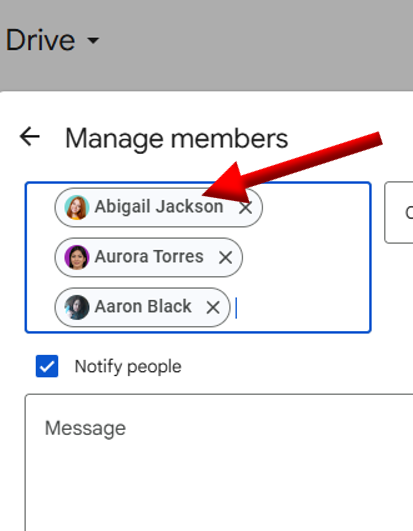 |
| 5. Click ‘Manage members’. | 6. Add the people. |
 |
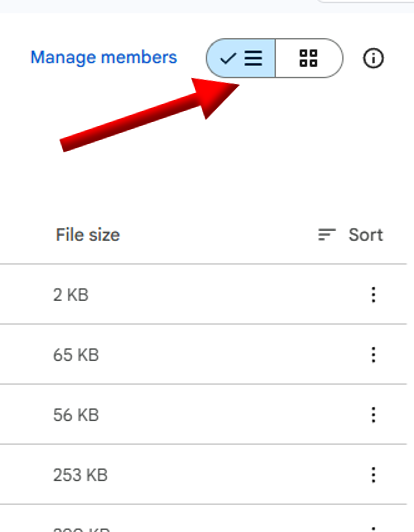 |
| 7. Click New to upload files. | 8. Change the view (optional). |
3. Set Access Permissions Accordingly
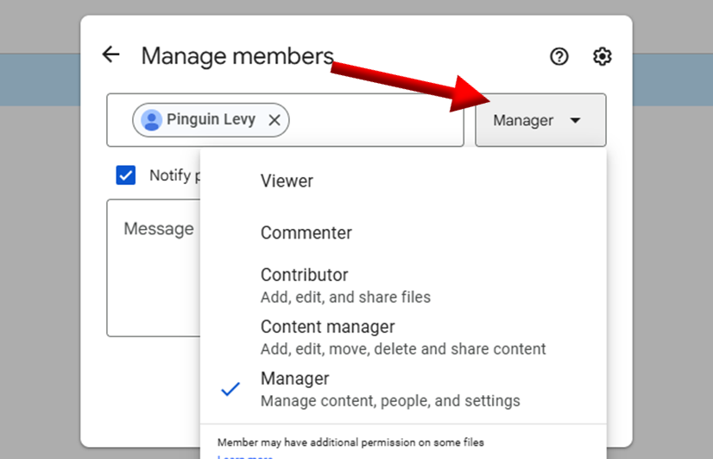
At Keto Kitchen, Sally and Ted learned the importance of giving the right people the right level of access. By assigning proper roles in Google Drive, they could control exactly who could view, edit, or manage each folder. This prevented accidental deletions, unwanted edits, and stopped the wrong people from gaining too much control over their business files.
- Viewer. Can only look at the files.
- Commenter. Can only leave comments on the files, no editing.
- Contributor. Can edit files and upload new ones, but can’t move or delete anything.
- Content manager. Can do anything with files – add, edit, move, or delete.
- Manager. Can do anything with files or folders, and also add, remove, or reassign access to people in the shared drive
You can change access permissions in the dropdown next to the collaborator’s name.
4. Manage Shared Drive Settings to restrict the usage of your documents
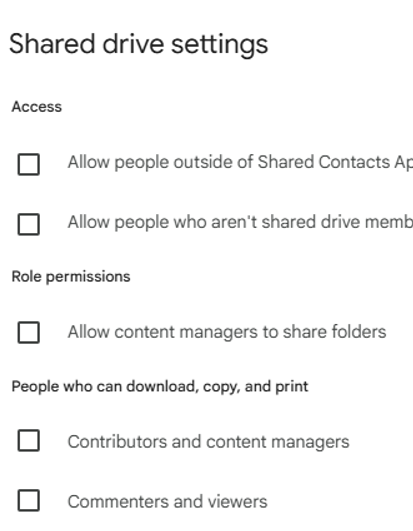
By default, people can download, copy, and print files from a Shared Drive. To keep Keto Kitchen’s business data secure, they disabled those permissions and only re-enabled them when necessary, such as when sending the nutritional value and allergen .
Steps to Manage Shared Drive Settings:
- Open Shared Drives in Google Drive.
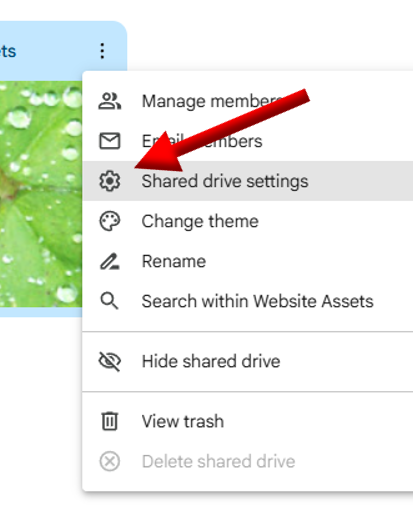
- Find the drive you want to manage and click the three vertical dots (⋮) next to it.
- Select ‘Shared drive settings’.
- Set permissions accordingly.
 |
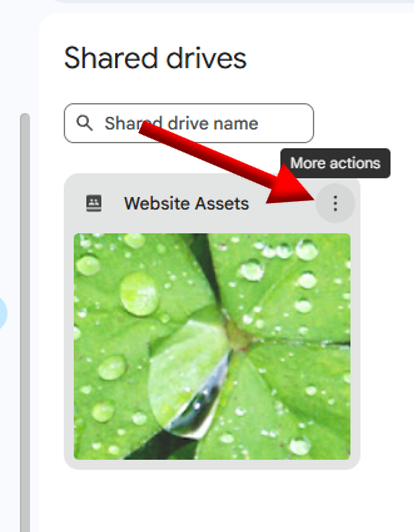 |
| 1. Go to Shared drives. | 2. Click (⋮) on the target shared drive. |
 |
 |
| 3. Select ‘Shared drive settings’. | 4. Set permissions accordingly. |
5. Avoid forgotten invitees with temporary access
Now that Keto Kitchen has a Google Workspace account, Sally and Ted can set expiry dates on critical shared files, such as reseller agreements and marketing drafts. This ensures that access would be automatically removed once the project or contract ends. They were diligent enough to set this for each file, as this feature doesn’t work for entire folders.
Steps to Set an Expiry Date Access to a File:
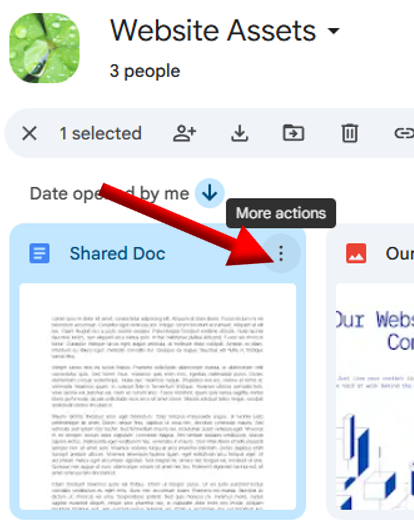
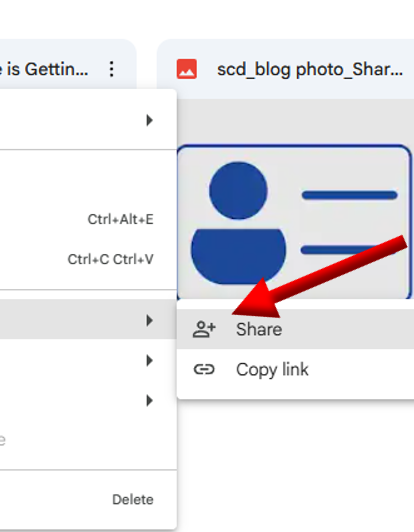
- Find the file and click the three vertical dots (⋮).
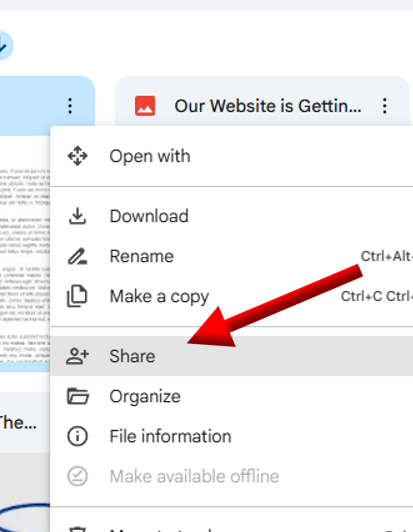
- Scroll to ‘Share’.
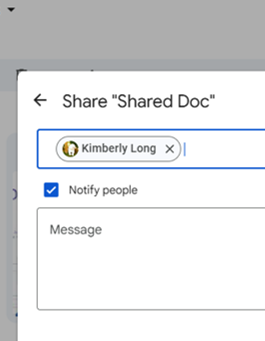
- Select ‘share’.
- Enter the user name you want to restrict.
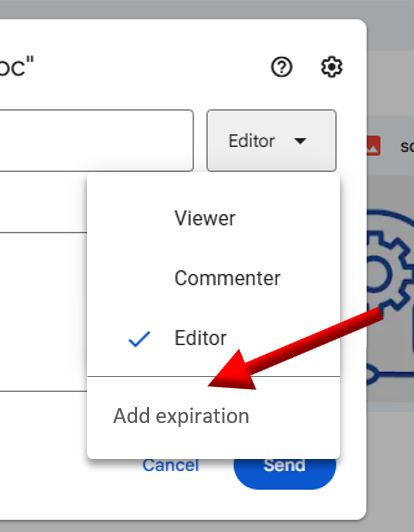
- Click the dropdown menu for the access permission.
- Select ‘add expiration’.
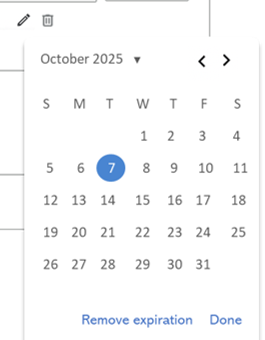
- Select the date when the access will expire.
- Click Share.
 |
 |
| 1. Find the file and click the three vertical dots (⋮). | 2. Scroll to ‘Share’. |
 |
 |
| 3. Select ‘share’. | 4. Enter the user name you want to restrict. |
|
|
| 5. Click the dropdown menu for the access permission. | 6. Select ‘add expiration’. |
 |
 |
| 5. Select the date when the access will expire. | 6. Click Share. |
With these strategies in place, Keto Kitchen can now manage file sharing effectively. Let’s recap the key takeaways and best practices to secure your documents.
Resolution: Sally’s Recipe for Smart Document Sharing
Now that Google Workspace sits on Keto Kitchen’s tech shelf, that’s one less ingredient of concern in their business recipe. Sally and Ted decided to improve how their team can work with files. Here’s what they have implemented:
- Google Groups
Sally created a Google Group called resellers@ketokitchen.com for her distribution team. When new members join, or others leave, she doesn’t have to update every file. Instead, she just adds or removes their email address from the group, and their access to shared files updates automatically. - Shared Drives
Now, all marketing photos, videos, and other materials are stored in a Shared Drive within Google Workspace, accessible to Sally, Ted, or anyone they authorize. If either of them is unavailable, another team member can easily access the files. This ensures that critical materials are secure and always available, preventing delays like the one caused by Sally’s hacked account. - Permission Levels
Ted and Sally have become more proactive in managing permission levels. Rather than using the “anyone with the link” setting, they now restrict access to specific individuals or groups, assigning either ‘view-only’ or ‘edit’ permissions based on necessity. This approach ensures that sensitive documents, such as the upcoming menu, are protected from unauthorized access. - Download/Copy Restrictions
Important files such as product details, nutrition facts, and calorie counts can be viewed by anyone, but not copied or changed. This prevents mistakes or intentional changes to sensitive information. - Expiration Dates
Reseller agreements now have access expiration dates, ensuring that permissions automatically end when the partnership contract concludes. This prevents former resellers from viewing sensitive documents and ensures that only current, authorized partners have access to the information that matters.
Takeaway:
To avoid the mistakes Keto Kitchen faced like losing track of file access or sharing with the wrong people, upgrade to Google Workspace. This gives you real control over your files with tools like download/copy restrictions, detailed permissions, and automated access expiration.
Consider organizing your documents into Shared Drives, setting up Google Groups for access control, and using permission settings to secure your files. By implementing these steps, you’ll protect your documents, ensure only the right people have access, and avoid the chaos Keto Kitchen experienced.