- Installation and setup
- Contact Management and Synchronization
- Contact Sharing and Permissions
- How can I share my Google Contacts with other users?
- Can I share all my Google Contacts automatically?
- How can I set up contact labels so they’re automatically shared with everyone in my organization, without having to re-share them whenever new employees join?
- Can I share contacts with users outside my Google domain?
- Can I share contacts with users with a free Gmail account?
- Can I share my “Other contacts” folder from Google using Shared Contacts Dashboard?
- Can I share a contact label with a Google Group email address (e.g., staff@domain.com)?
- Can I reshare a contact list that was initially shared with me?
- If I share my contacts with someone, can they edit those contacts?
- Where can the people I’ve shared contacts with use those contacts?
- How can I remove someone’s access to my shared contacts?
- What happens if I share contacts with someone who’s already part of a group that has access to those same contacts?
- What access permissions can I give to users I invite to the shared label?
- Do dots in email addresses affect the contact-sharing process?
- Licensing and Payments
- Privacy and Security
- Other questions
Can I share my “Other contacts” folder from Google using Shared Contacts Dashboard?
“Other Contacts” are people you’ve interacted with in Google products. They are not saved as regular contacts and will not appear in the search results when you use the Contacts search bar. Because “Other Contacts” is an internal Google service, they cannot be shared directly. However, you can add these contacts to a label and share the label with others. Once added, they become part of your regular contacts, making them easier to find, manage, and share.
-
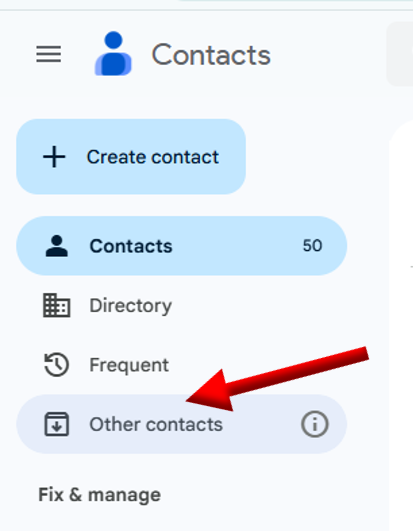
In Google Contacts, click “Other Contacts.”
-
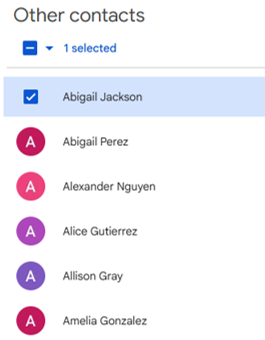
Select the contacts you want to share:
-
For a single contact, hover over their name and click the checkbox.
-
For multiple contacts, keep clicking the checkboxes next to each name.
-
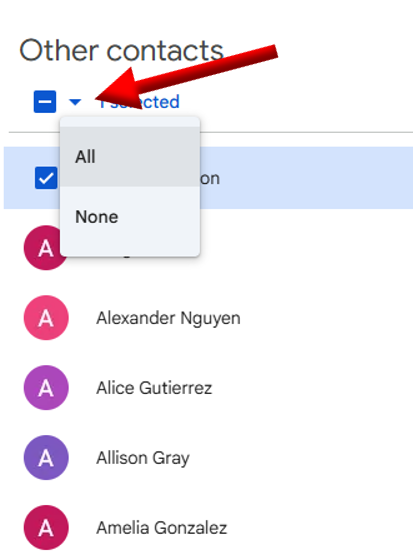
To select all, click the drop-down arrow at the top and select All.
-
-
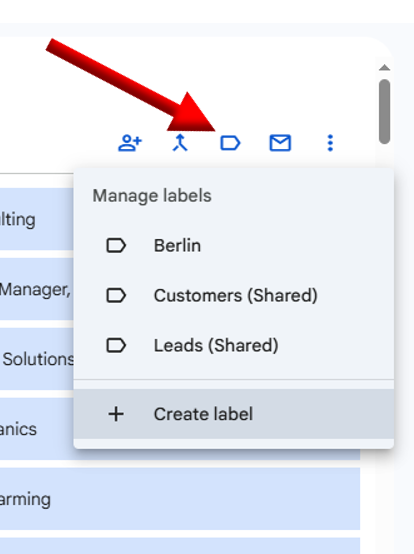
Click the label icon at the top, then add the contacts to a new or existing label.
-
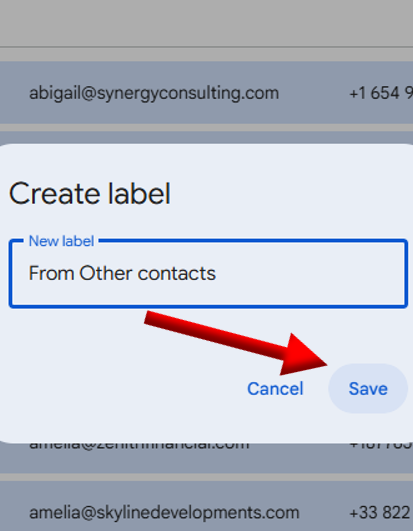
Click Save. You can now share this label with others.
For detailed instructions on sharing a label, follow these steps.
![]() |
![]() |
| 1. Open Other Contacts account. | 2. Select contacts. |
![]() |
![]() |
| 3. Click label icon, create label. | 4. Name label, then Save. |