
How can I share my Outlook contacts with other Google Workspace users?
You can share your Outlook contacts with Google Workspace users by exporting the contacts, importing them into Google Contacts, and sharing them through the Shared Contacts Dashboard.
Stage 1: Export contacts from Outlook
- Open Outlook.com.
- Open the People page from the top of the side panel by clicking the icon.

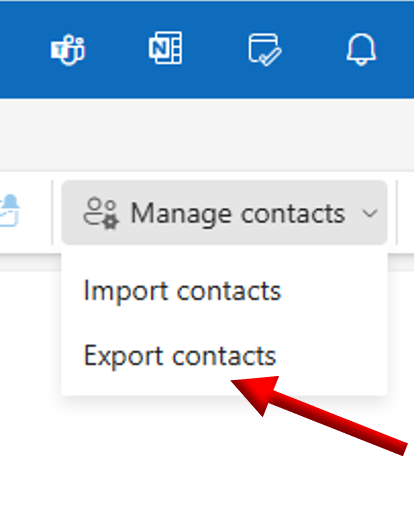
- In the toolbar at the top, click Manage contacts, then choose Export contacts.
- Choose if you want to export all contacts or only the ones from a specific folder, then click Export.
Note: Your contacts are saved as a .csv file in your computer’s Downloads folder.
 |
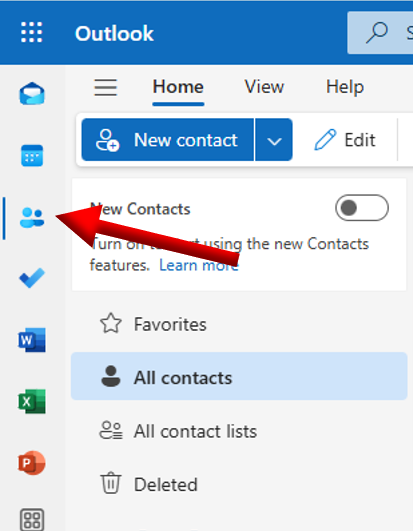 |
| 1. Open your Outlook.com. | 2. Go to People page. |
 |
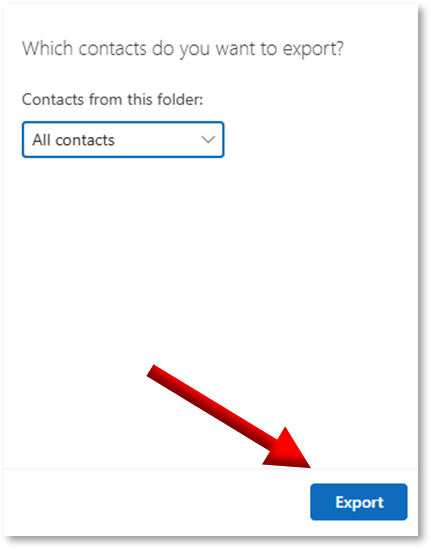 |
| 3. Click Manage contacts→ Export contacts. | 4. Click export to confirm. |
Stage 2: Import contacts to Google.
- Open Google Contacts.
- On the left side, select Import.
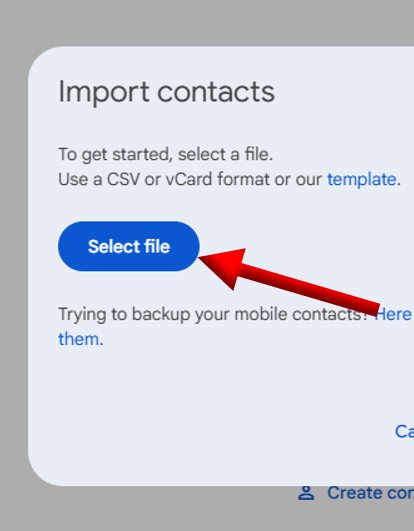
- Click Select file and upload the file you got from Outlook.
- Click Import to finish.
 |
 |
| 1. Open Google Contacts. | 2. Select Import. |
 |
 |
| 3. Select the file from Outlook. | 4. Click Import. |
Stage 3: Share the contacts through Shared Contacts Dashboard.
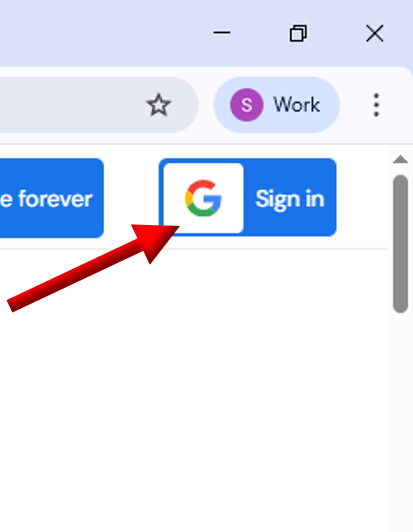
- Open the app by clicking Sign in at the top right of this website.
- Click the share icon on the label you want to share.
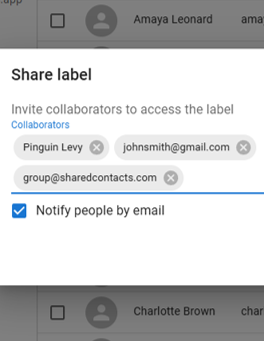
- Add the people (individual or group) you want to share the label with.
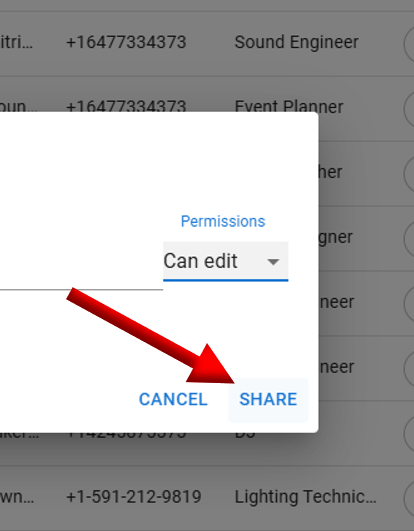
- Set their permission level: view only, edit, delete, or reshare.
- Click Share.
Note: You can also share with private Gmail users, but they must first authorize the Shared Contacts Dashboard to access their account before they can view/edit the shared contacts.
 |
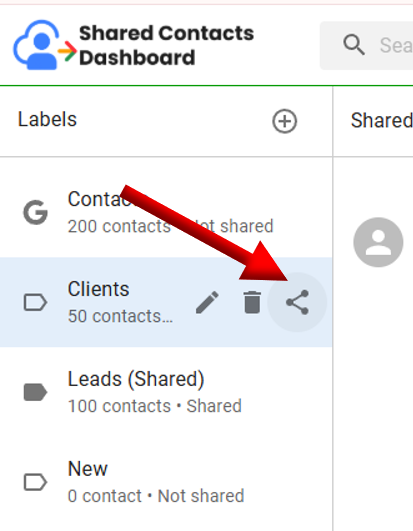 |
| 1. Open the app. | 2. Click the share icon. |
 |
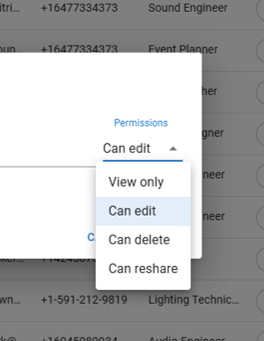 |
| 3. Add collaborators. | 4. Set permissions. |
 |
|
| 5. Click Share. |